Installing Menus in AutoCAD 2010AutoCAD 2010 makes use of a new and "complicated" ribbon based menu system in its 2010 version. The underlying code behind controlling and updating the menus has changed and Artwork's installer is unable to automatically update the menu in version 2010. Fortunately this can be done by the user with a few simple steps (assuming you know exactly what to do). This page documents the steps to install menus for our family of packaging tools that run inside of AutoCAD 2010. While this example shows the LayoutGen program, it applies to all of our tools: Bondgen, Tagger, Wirebond, FA4ST and so on .... |
|
Starting Point
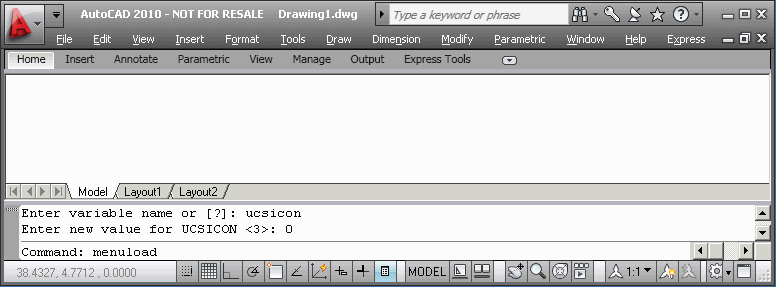
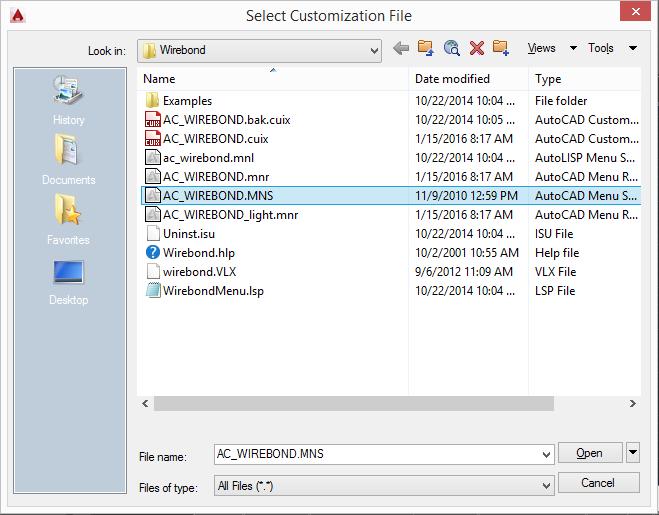
Our starting point is a "clean" AutoCAD 2010 as shown below: ![]() On the command line type: menuload [enter] The Load/Unload Dialog will pop open: ![]() To add the LayoutGen (or other package) menu to AutoCAD 2010 you must first find it by using the Browse button. Click on the Browse button and navigate to the correct directory which is (if you have installed in the default location) C:\ACS Package Tools 2010\LayoutGen ![]() Select the file called ac_layoutgen.cuix and then click on Open This will move the selected menu into the File Name field in the Load/Unload Dialog:
Now just click on the Load button and the selected menu, ac_layoutgen.cuix will be moved to the Loaded Customization Groups window. ![]() Close the Load/Unload Dialog and your AutoCAD 2010 menu will have been updated to show the LayoutGen menu. ![]() This manual loading of the menu need only be done once. If you now close AutoCAD 2010 and re-open it you will see that LayoutGen appears automatically in the menu. You should not need to repeat this process even when updating LayoutGen -- since this menu gets loaded dynamically when AutoCAD starts up, after an update, AutoCAD will load the updated menu (assuming you installed over the old version in the same directory)
|