|
AutoCAD for PCB Artwork
Steve DiBartolomeo |
IntroductionThis document explains how to use AutoCAD to draw printed circuit board artwork. The methods described here are not the only ones that work, but have been successfully applied to both simple and complex boards. The drawings are converted to Gerber using Artwork Conversion Software's ASM 500. Two types of boards will be discussed:
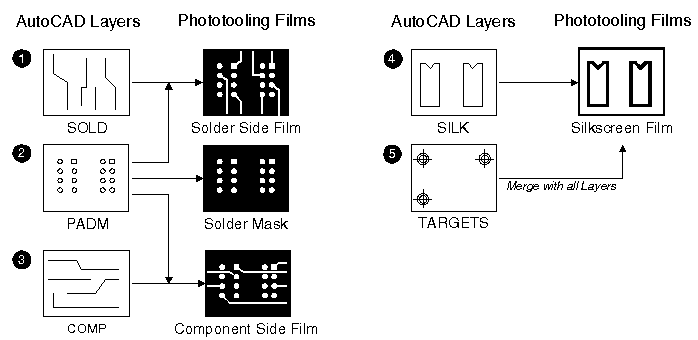
The Two-Sided BoardThe two sided board requires several photo tooling films. AutoCAD layers that should be defined are:
|
|
Why Organize This Way?This organization was developed so that board fabrication information can be extracted from the drawing database. The padmaster layer contains information required to create: Solder MasksDefines openings in a protective plastic coating. Pads are exposed and traces are covered. If the drawing is properly organized, the solder masks can be derived from the padmaster layer.The board fabrication shop increases the pad dimensions slightly and replots the data to get the required clearance value between the pads and mask.
|
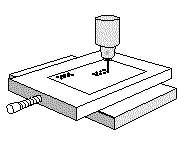
Drill DataA hole is drilled through the center of each pad to accommodate either a component pin or via. The drill information does not need to be drawn in AutoCAD, but can be extracted from the padmaster layer. |
![]()
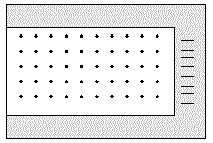
Bare Board Test PointsTest point locations for building the bed of nails and for generating bare board test programs can be derived from the padmaster Gerber file.
|
Setting Up Your DrawingUse a grid snap if possible. An exception would be round test boards and some flex boards which do not conform to a rectangular grid. Most PCB fabrication equipment runs on grid based rules. Ask your board fabricator what grid size is supported. Depending on the density of the design, the grid snap may vary from 0.010 inch to 0.001 inch. Once advantage of using AutoCAD is that you can set any grid size you want. If you are working with metric parts you can draw directly in millimeters or set up a grid in inches equal to the proper metric grid. |
![]() Use grid snap whenever possible. Your drawings will be easier to fabricate. |
Use Blocks for Flashes![]() |
The typical PCB has hundreds of heads for component pins and vias. While you could
draw each pad on AutoCAD as a donut or circle, there is a more efficient way to photoplot
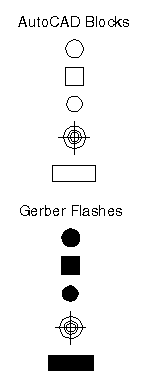
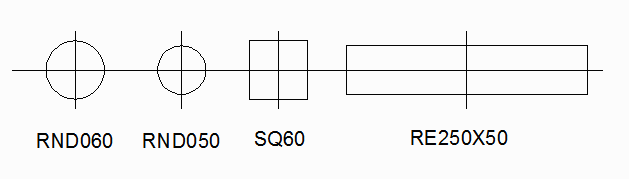
pads. The trick is to use a Gerber flash for each pad. The closest AutoCAD entity to a flash is a block. One drawing approach will be to define a block for each flash type. First determine the size and shape of your pads. In our two-sided example we will have .050 round pas for vias, an .060 square pad for pin 1 on components, a .060 round pad for component pins, a .250 x 0.050 rectangular pad for the edge connector, and an alignment target. Although a target is not really a pad, it should always be flashed so that reference coordinates can be extracted for drill data. Next assign a unique and descriptive block name for each pad. Each block will later be assigned to a Gerber D-code. The block name should be short but descriptive of the flash.
|
| Pad Dimensions | Shape | Block Name |
| .060 | circle | RND60 |
| .060 | square | SQ60 |
| .050 | circle | RND50 |
| .150 | target | TARGET |
| .250 x 0.050 | rectangle | RE250X50 |
|
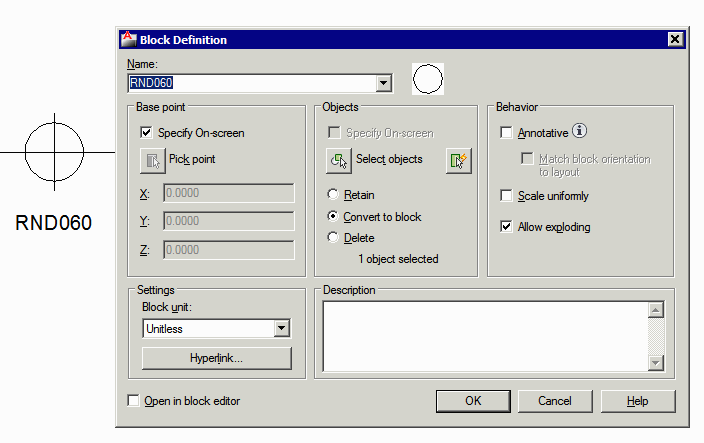
How to Create Flash Blocks Set PADM to the current layer. Draw the representation of your pads. What you draw is only symbolic of what will show up on the film. For this example draw a .060 diameter circle, a .050 diameter circle, a .060 square, and a rectangle .250 long by 0.050 wide on a layer PADM. Define each figure as a block. Use the center of the figure as the reference point of the block. Give each block a short name. When the time comes to use the translator, you will assign each of these blocks to a unique D-code. The descriptive name will help in building the aperture list. |
![]() |
Defining blocks for flashes |
|
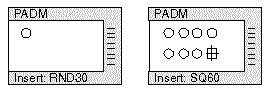
Inserting Flashes Set the current layer to PADM. Using the block insert command, insert the block RND 060 for component pins. You may wish to create a macro or an AutoLisp routine to speed things up. Repeat this for each pad type you use in the design.
|
![]() |
Inserting blocks for flashes |
|
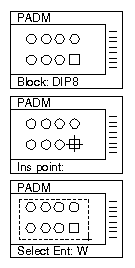
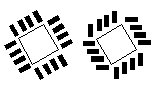
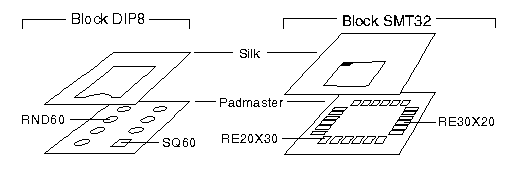
Building Libraries It often makes sense to build a block containing all of the required pads for a part and the outline of a part. To create a library element, first set the current layer to padm. Insert the blocks required for each pad. Change the current layer to SILK and draw the part outline. Then define a new block using a name that represents the part. This block will contain blocks such as RND60 and SQ60 and will also contain the part outline on the layer SILK.
|
![]()
|
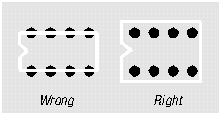
Building libraries using flash blocks. Do not set the block DIP8 to a flash |
| Do not insert flashes or blocks containing flashes or rotation |
![]()
|
![]()
|
|
By building your own library of blocks, time can be saved. Flash blocks
should be inserted on layer PADM. Part outlines should be drawn on the
silkscreen layer.
|
|
Drawing Circuit Traces
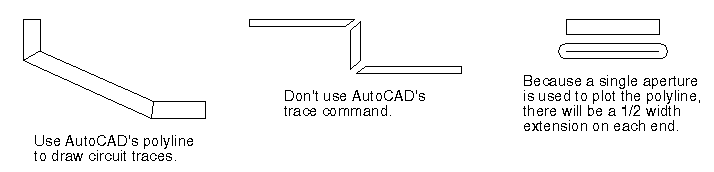
Circuit traces are drawn using AutoCAD's POLYLINE entity. The polyline can be assigned a width and can have many vertices. Don't use AutoCAD's trace entity; although it may sound like a good entity to use, it actually consists of separate polygons and is not efficiently converted. |
|
|
Polylines are translated to a Gerber stroke of the same width. To draw circuit
traces on the solder side of the board, set the current layer to SOLD. Using
polylines of the width chosen for your traces, connect the pads. Polylines can be adjusted using the PEDIT command to move vertices or change the width. Polyline arc sections may also be used, especially of flex circuit boards. Each Gerber stroke will have a 1/2W round extension at the ends of the stroke because it is created by a pen with diameter W. |
|
|
Solids
For certain designs you may desire that some polylines are treated as boundaries (i.e.,the square end is preserved) and others are treated as circuit traces. The simplest approach is to use AutoCAD's "SOLID" entity for all rectangular pads. Use polylines to interconnect the SOLID's. The SOLIDS will be filled so that the edges remain square. The polylines will be plotted using a single aperture. |
Ground Planes
How best to draw the ground plane area depends both on the complexity of the ground plane you wish to create, and on the capabilities of your translator and phototherapy. It may be difficult to visualize your ground plane area because AutoCAD lacks the ability to display an irregular filled area. Several strategies are outlined below. |
|
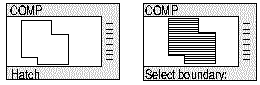
Hatching
Very simple ground planes can be hatched using AutoCAD's hatch command. A simple translator such as ASM 501, which does not fill closed areas can still be used for ground planes. Hatching quickly becomes ineffective because:
|
![]() |
AutoCAD's Hatch can be used to fill simple ground planes |
|
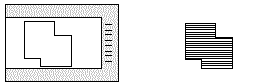
Closed Area Fill Translators such as ASM 502 and ASM 500/386 will fill closed zero-width polylines during the conversion. With these translators, you can create your ground plane using a zero width closed polyline. The post processor will stroke the interior, automatically compensating for aperture diameter. |
| Translators such as ASM 502 and ASM 500 fill closed areas. These translators also compensate for aperture diameter. |
![]() |
|
It's very easy to draw, and drawing file size remains small. However, AutoCAD will
not display the fill on-screen. If you have areas inside the ground plane that
need to be cleared, the auto fill will not take these into consideration.
|
|
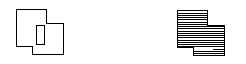
These translators do not take in account areas the designer wishes to remain clear. |
|
Fill-on-the-Fly Photoplotters
Even better, use a photoplotter that can fill areas during rasterization. Both the drawing file
and the Gerber file stays very small. Photoplotters that can do this include model 9825 from Gerber
Scientific, the FIRE 9000 family from Cymbolic Sciences, and the photoplotter from Mivatec.
|
|
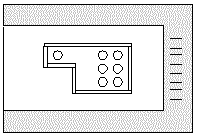
Negative Plot Some layers are almost all ground plane. In this case it is best to draw only the clearances. This data can be reversed on the photoplotter and merged with a trace or pad layer if necessary. |
![]() Sometimes it is easier to draw just the clear areas. |
![]() Film can be easily reversed on the plotter |
|
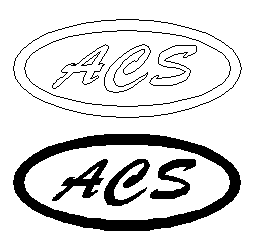
The Silkscreen Layer The silkscreen layer usually contains component outlines, text, and perhaps a company logo. ASM 500 reproduces text by using the same SHX font files as AutoCAD. The font strokes are converted to Gerber draw commands after the appropriate scaling, rotation, and mirroring. You will need a copy of the SHX file available to the translator when running the conversation. Logos can be drawn by outlining the border and then hatching the inside. Set the current layer to SILK. Construct the outlines for IC's, resistors, capacitors, etc. Make a note as to how thick you want these lines to be.
|
A thickness of 0.008 to 0.015 inch
is recommended. Check with the board fabricator for the optimum width. You may, if you wish, define each outline as a block or incorporate it into a library component. This will enable you to place a large number of outlines quickly. When the postprocessor encounters an inserted block, and does not find the name in the aperture table, the post-processor explodes the block and then processes the entities found outside of the block. The entity data must be located on the layer under consideration. You should not draw your component outlines on layer 0 and then expect to find them in layer SILK, even if you insert the block in layer SILK.
|
![]() |
Silkscreen text should not be so thin that it does not produce a clean screen, nor should it be so thick that it blocks up. As a rule, make the text thickness about 1/7 the height. |
![]() |
For the font panel work, custom fonts can be obtained that use multiple strokes to emulate well known typefaces such as Helvetica. |
![]() |
Logo's can be drawn using lines and arcs and the filed by hatching |
|
Pad Clearance It is considered bad practice to run silkscreen ink over pads. While board fabricators now have CAM programs that can remove lines that cross over pads, it is better if the designer avoids this practice. |
![]() |
|
Block Attributes AutoCAD's Block attribute is a useful tool for those building part libraries. The attribute is a piece of text that can be attached to the block. The beauty of the attribute is that the text string can be set up to be a variable - at the time you insert the block, the designer is prompted to enter the desired string of text. This is ideal for adding reference designators such as U1, R11, C5, as well as component values. Unfortunately, on dense boards you can not always locate the part number or reference designator in the same position relative to the block insertion point.
|
|
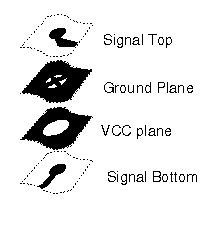
Multilayer Boards Multilayer Boards include multiple signal layers, ground layers, and power plane layers. In this example, we will use a board that has a top and a bottom signal layer, one ground layer, and one VCC layer. |
|
| Ground and power plane layers do not normally contain traces. They contain either clearances or connections to the metal in the plane. The connections to the plane are made via a "thermal", for the purpose of keeping heat away from the flowing copper during soldering. | |
|
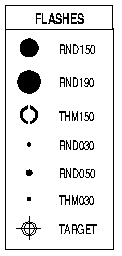
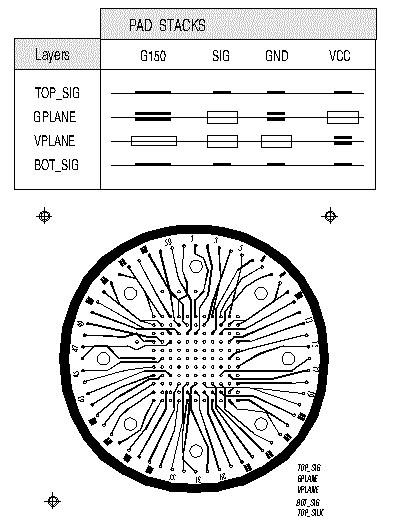
Pad Stacks Unless you have a very complex board with inner layer vias, you can set up a family of road stacks to ease your design. First determine the different flashes you will require. In this example we need:
|
| Description | Block Name | Purpose |
| Round.150 | RND150 | Screw Holes |
| Round.190 | RND190 | Clearance of screw holes |
| Thermal.150 | THM150 | Thermal for screw holes |
| Round.030 | RND030 | Signal pad |
| Thermal.030 | THM030 | Thermal for VCC or GND |
| Round.050 | RND050 | Clearance for VCC or GND |
| Target.150 | TAR150 | Targets for alignment |
| Then build a block stack consisting of the correct flash blocks on each layer. See the table below. Now insert the correct stack as needed. Once all the stacks are inserted you can interconnect them with polylines. | ![]() |
|
| Artwork Home | ASM500 Family Home | Pricing | Download |
|
ARTWORK CONVERSION SOFTWARE, INC. Company Profile 417 Ingalls St., Santa Cruz, CA 95060 Tel (831) 426-6163 Fax 426-2824 email: info@artwork.com |